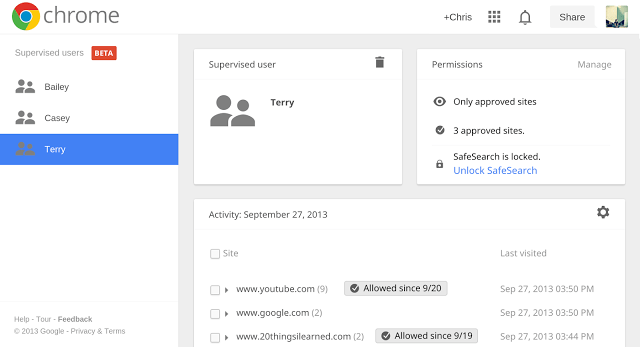
Google is officially beginning to roll out parental controls in its Chrome web browser in the form of a new “Supervised Users” feature that is live now in the beta channel for early testing ahead of its expected public release. The option allows a user, most likely a parent, to lock down the Chrome browser running on their device in order to allow and block access to certain websites, enable SafeSearch for filtering Google search results, and maintain a history of the websites visited, among other things.
The “Supervised Users” option has been in testing for some time. It was first spotted in the wild this past December when developers found an option called “Managed User Settings” in Chrome’s Canary/Chromium build. Then this summer, the feature became more broadly accessible to users of the Canary build, as it was able to be switched on and off using a couple of flags.
Google had yet to officially comment on its plans with parental controls, however, until today. In a blog post, software engineer Pam Greene introduced the “Supervised Users” option, relating how she liked to sit with her own daughter when browsing the web, but also needed more tools to keep her family safe.
Though the option is offered in the Chrome browser, it’s obviously designed with Chromebook users in mind – like those buying the new HP Chromebook 11 devices, which TechCrunch recently got its hands on. On Chromebooks, the browser is the operating system, so locking down how it behaves can change the entire user experience.
In the case of Supervised Users, a Chromebook user with full permissions can visit chrome.com/manage to control and edit their kids’ (or other supervised users’) accounts. Parents can set the browser to only allow access a pre-approved list of websites; they can turn on Google’s SafeSearch to filter adult content from search results; review children’s requests for access to restricted sites; and view web histories. There are also options for more granular controls, like blocking all subdomains for a host. (To do so, you enter a star * before the main domain, e.g. *.example.com).
On Chromebooks, the option to create a Supervised User will appear on the main sign-in screen. You’ll click “Add user” to launch the “Sign In” dialog box, then click on “Create a Supervised User” on the right. On Mac, Windows and Linux PCs, however, the option to create the account will be accessible from the “Users” section in the “Settings” menu.
Google says the Supervised Users setting will begin rolling out to users this week. Having just attempted to try it on the Chromebook 11, I found it hadn’t arrived just yet, but your mileage, as they say, may vary.